You can hook up a SharePoint list to a Dataverse environment using Virtual Tables, and without using any code. The documentation on how to do this is at https://learn.microsoft.com/en-us/power-apps/maker/data-platform/create-virtual-tables-using-connectors
However, the doc page misses two key things when it comes to transporting this table via solution.
If the ID on the target environment’s SharePoint List is different you would get this error, which basically says that the list is not found on the SharePoint site. You of course have to create different lists if you need different SharePoint sites for DEV, TEST, UAT and PROD. It is also not possible to create a SharePoint List with a specific ID.
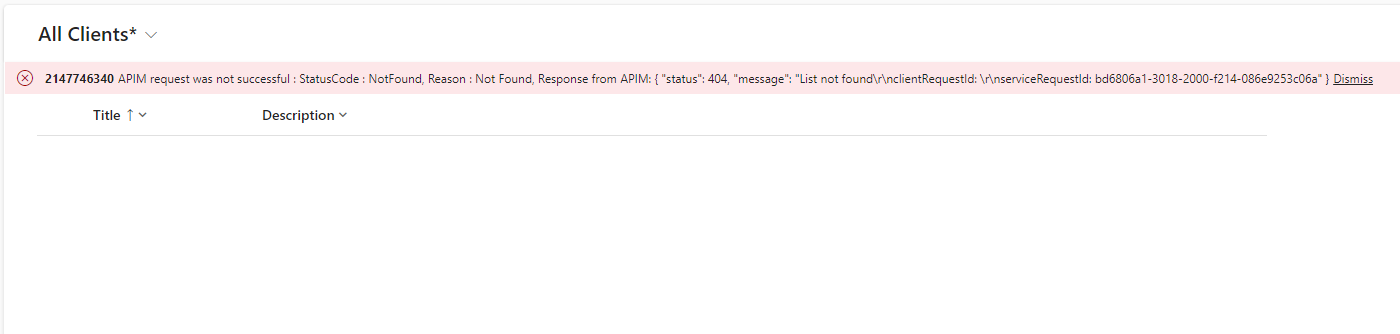
First one is, after the solution is imported you’ll have to update it to point to the correct SharePoint site.

The column to update is Dataset value.

Next, you’ll have to update the SharePoint List ID. Unfortunately, you cannot edit this in the modern solution experience. It shows up as read-only.

The only way you can update this without code is to use the classic solution experience.
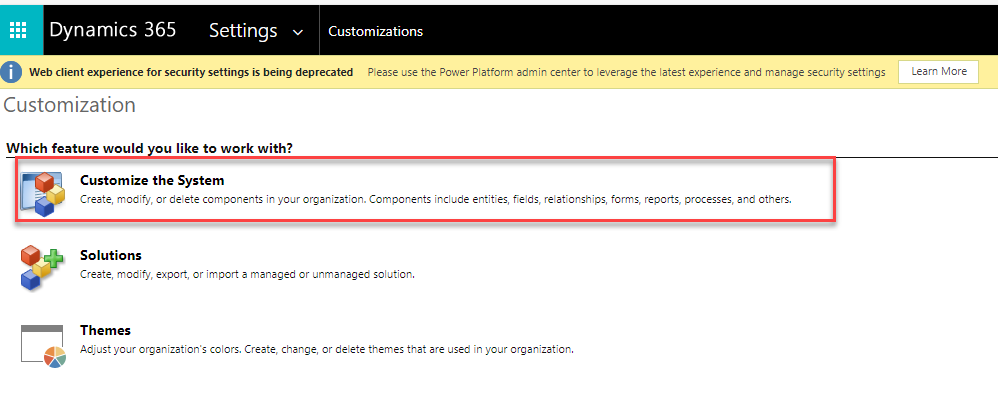

You can get the List ID from the List settings.

The List ID is in the URL.

If everything is setup properly you would see the SharePoint List’s content in your Model Driven App.

This workaround unfortunately creates an unmanaged layer on the target environment, but until Microsoft releases something to fix the fundamental issue, this seems to be the only way to transport solution with Virtual Tables pointing to a SharePoint List.
 Dreaming in CRM & Power Platform